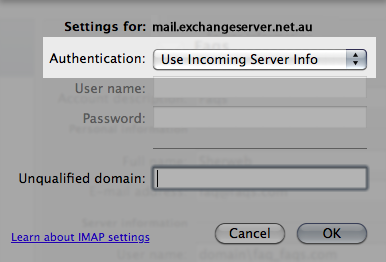
In Outlook 2011, select File > Add Account
Select Email Account
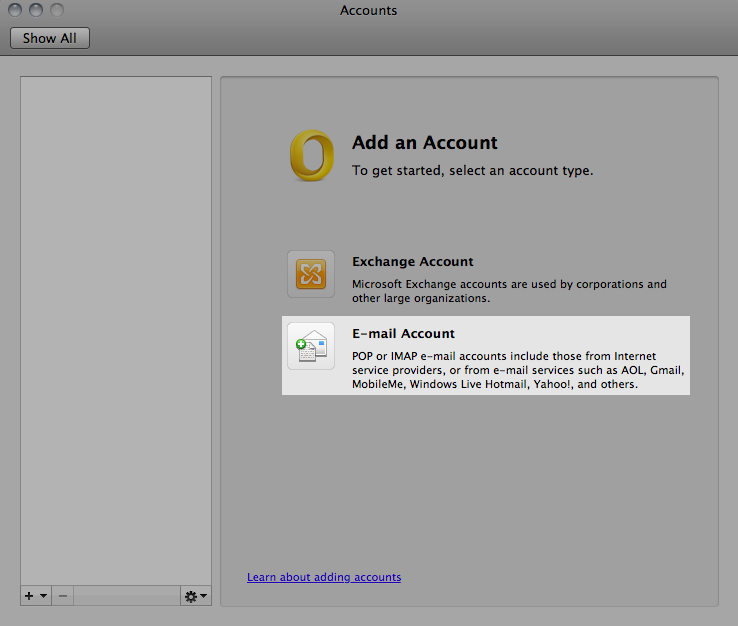
Now fill in your mailbox settings:
Email address: your Exchange e-mail address
Password: your mailbox password
User Name: your Exchange e-mail address
Type: IMAP
Incoming mail server: mail.exchangeserver.net.au
Port: 993
Override Default Port: leave unticked
Use SSL to connect: ticked
Outcoming mail server: mail.exchangeserver.net.au
Port: 587
Override Default Port: ticked
Use SSL to connect: ticked
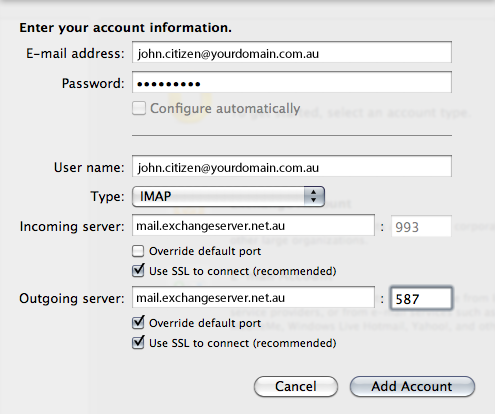
Click on More Options
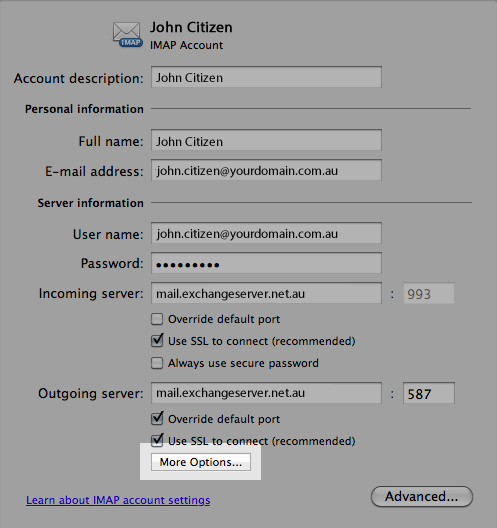
Choose Use Incoming Server Info in the Authentication drop down menu and then click on OK.